Xbox 360 Emulator: Why Xenia Canary Is the One to Use
The Xbox 360 emulator to use on PC is Xenia Canary. Requirements (AVX CPU, D3D12 or Vulkan GPU), setup basics and how to play games you own legally.

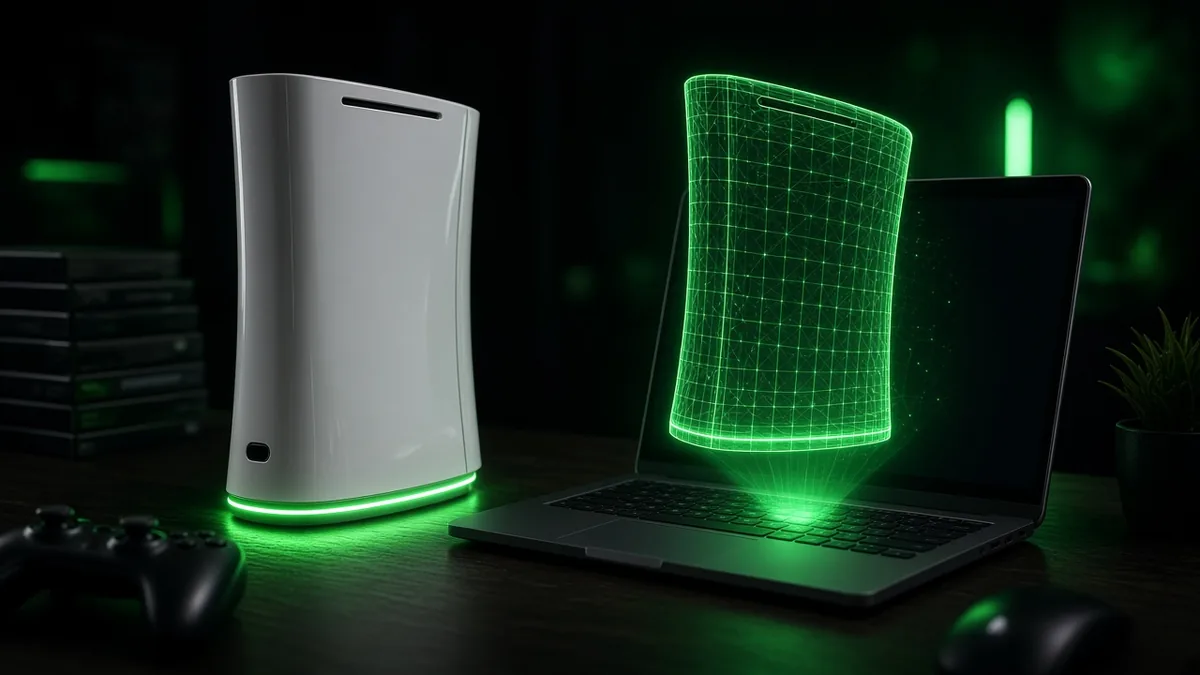
The Xbox 360 emulator to use on PC is Xenia, the only one there that plays commercial games, and the version you want is Xenia Canary, its frequently updated fork. It runs on 64-bit Windows 10 or 11, with a Linux build and Proton as options, and needs a CPU with AVX plus a Direct3D 12 or Vulkan graphics card. It doesn’t need any Xbox 360 system files. You do need your own games, dumped from discs or downloads you own. Details below match the Xenia Canary wiki as of November 2026 (last edited July 2026).
Xenia vs Xenia Canary: which one?
Xenia started as an Xbox 360 research project, and the original “master” build still exists. The Canary fork gets far more frequent updates and carries changes master doesn’t have, including game patches that fix crashes or lift frame-rate caps in specific titles.
Our take: start with Canary. The Xenia Canary Quickstart itself describes master as infrequently updated and only suggests it as a fallback if a game misbehaves on Canary.
Xbox 360 emulator requirements
Xenia checks your CPU and GPU when it launches and refuses to start if either falls short. These are the project’s own numbers from its wiki, last edited July 2026. Not sure about AVX? The wiki suggests checking with the free CPU-Z tool.
| Part | Minimum | Recommended |
|---|---|---|
| OS | Windows 10 x64, or Linux with Proton | Windows 11 x64 |
| CPU | 64-bit x86 with AVX or AVX2 | 6 or more cores |
| GPU | Direct3D 12 or Vulkan capable | NVIDIA GTX 980 Ti or later |
| RAM | 4 GB | 6 GB or more |
Two warnings from the same page are worth taking seriously. The project doesn’t recommend AMD graphics cards because of driver bugs that can crash Xenia, and it says integrated GPUs generally run games too slowly to be comfortable. OpenGL and Direct3D 11 aren’t supported at all. Meeting the recommended spec doesn’t guarantee smooth play either; results vary a lot by game.
How to set up Xenia Canary
Setup is short because there’s no installer and no BIOS to hunt for. Follow the official route.
- Update your GPU driver from NVIDIA, AMD or Intel directly. The wiki notes Windows Update tends to lag behind.
- Install the Microsoft Visual C++ x64 Redistributable linked on the Quickstart page.
- Download Xenia Canary from the project’s GitHub releases: a .7z archive for Windows or an AppImage for Linux.
- Extract the archive to its own folder and run the Xenia Canary executable.
- Open your dumped game through the File menu. Xbox Live Arcade titles start in trial mode by default; the wiki lists an option that runs them as full, activated games.
If your antivirus flags the download, the project says detections on official builds are false positives. That only applies to the official source, which is one more reason not to grab Xenia from anywhere else.
Getting games legally: dump your own
Emulators are legal. Downloading Xbox 360 ISOs or game files you don’t own is piracy. The legal path is dumping your own discs and downloads, and Xenia’s wiki documents a method that works on an unmodified console.
- Install the disc game to your Xbox 360’s storage from the game’s details screen, then transfer it to a USB drive formatted by the console.
- Copy the game folder from the USB drive’s Content directory to your PC, then open it in Xenia.
- Some games can’t be installed this way. For those, the wiki points to disc dumping with specific compatible PC drives.
Two shortcuts don’t work, according to the wiki: you can’t play straight from a PC disc drive, and you can’t rip 360 games with an Xbox One or Series console. The wiki also advises against converting games to ISO, since that wastes space.
What Xenia can’t do
Knowing the limits up front saves a lot of troubleshooting. Per Xenia’s FAQ and Quickstart, as of November 2026:
- No Xbox Live: Xenia will never connect to official Xbox Live servers, and System Link isn’t supported.
- No accessories: mice, Kinect, the uDraw GameTablet and microphones don’t work. A standard XInput controller, like any Xbox pad, does.
- No official Android or Mac build: official Xenia can’t play games on Android, and macOS isn’t supported. Unofficial Android forks exist: X360 Mobile, built on Xenia Canary’s ARM code, went public as an alpha on May 31, 2026, and Android Authority urged caution because its source is closed. Treat any Android build as experimental.
- No original Xbox games: Xenia doesn’t emulate the 2001 Xbox. That’s a job for a separate emulator such as xemu.
Since a controller is the one accessory that matters, our breakdown of input lag across eleven pro controllers is worth a look before you buy a new pad.
Other ways to play Xbox 360 games
Xenia isn’t always the best answer. Here’s how the three realistic options compare.
| Option | Best for | Trade-off |
|---|---|---|
| Xenia Canary on PC | Higher resolutions and community game patches | Compatibility varies by game; no Xbox Live |
| Xbox Series X|S backward compatibility | Plug-and-play convenience with official online support | Only works for games on Microsoft’s backward-compatible list |
| An original Xbox 360 | Every game, exactly as released | Aging hardware and 720p-era output |
Our take: if a game is on Microsoft’s backward-compatibility list, play it there. Reach for Xenia for everything else, and keep your 360 around as the dumping station. Digging through older libraries? Our list of ten forgotten launch games that deserved better is a good place to find your next one.
Canary build, your own dumps, an Xbox pad. Start there.
For other consoles, see our PSP emulator guide and whether you can play PS3 games on PS5. Need hardware? Our best gaming PC under $1000 picks are a good place to start.
FAQ
Does Xenia need an Xbox 360 BIOS?
No. Xenia’s Quickstart states it doesn’t require any Xbox 360 system files, which also means you should be suspicious of any download that bundles a “360 BIOS” or dashboard files. All you need is the emulator itself, the Visual C++ runtime, a supported GPU driver, and games dumped from your own discs or downloads.
Is Xenia the only Xbox 360 emulator?
On PC, effectively yes: it’s the only one that runs commercial games, and Canary is its active branch. Android now has experimental options too, including aX360e, a Google Play beta since December 2025, and the X360 Mobile alpha, per Android Authority. Both are early, so expect crashes and limited compatibility.
Can a Steam Deck run Xbox 360 games?
Possibly, with caveats. Xenia Canary offers a Linux build and supports Linux through Proton, and Steam Deck runs Linux. But Xenia’s wiki doesn’t recommend AMD graphics or integrated GPUs, and Steam Deck uses an integrated AMD chip. Expect lighter games to be the realistic target rather than demanding 3D titles.
Cassia Fenwick
Cassia Fenwick is a staff writer at Console Alley, covering console gaming from the latest hardware questions to the games players return to for years. Her work moves across news, practical guides, reviews, gaming gear, and the wider culture around games. Whether she is breaking down a new console feature or explaining a mechanic in a familiar favorite, she writes with a straightforward goal: help readers understand what matters and what to do next. She pays particular attention to the small details that shape the playing experience. A controller compatibility rule, a battery-life setting, a difficult-to-find resource, or a change introduced by a game update can make the difference between a frustrating evening and a rewarding one. Her published coverage includes Nintendo Switch and Switch 2 questions, Terraria, Stardew Valley, and The Sims 4, with explanations that welcome readers who may be discovering a game for the first time or returning after time away. Cassia's style is clear, patient, and grounded in practical examples. Rather than assuming readers already know the terminology, she begins with the question at hand, adds the context that genuinely helps, and keeps instructions easy to follow. She is interested not only in how a feature works, but also why its design matters—especially when a small interaction, interface decision, or unexpected mechanic changes how a game feels. Outside her gaming coverage, Cassia enjoys colorful postcards, making books, and noticing the shapes, colors, and details built into everyday objects. That curiosity carries naturally into her writing, where overlooked features and thoughtful design can provide a fresh way to look at a game. Her aim is for every article to be useful on its own: approachable enough for a newcomer, specific enough for someone looking for a quick answer, and enjoyable enough to leave readers with something new to explore.


1 comment