Amiibo Emulator Options in 2026: NFC Tags, Flipper Zero and PC Emulators
Amiibo emulator options in 2026: blank NTAG215 tags with TagMo, Flipper Zero, or the load-amiibo option in PC emulators. How each works and the legal route.

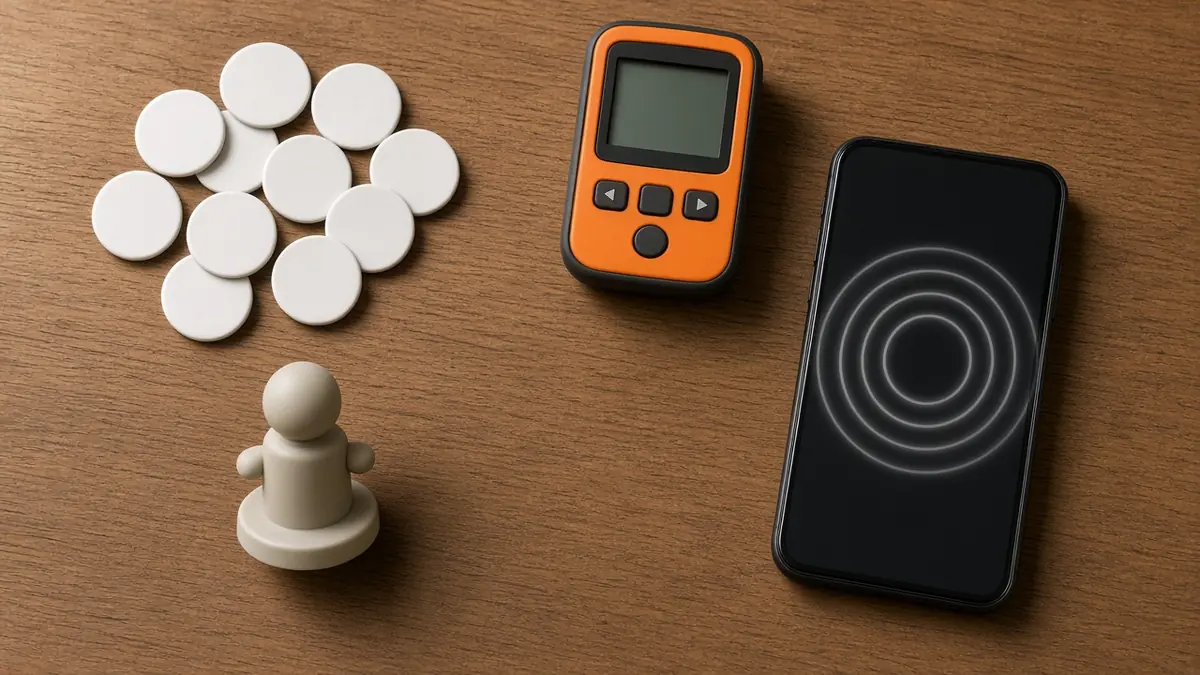
An amiibo emulator is anything that makes a game think you tapped a real amiibo. There are three kinds: a blank NTAG215 tag written with an Android app such as TagMo, a gadget like the Flipper Zero that imitates the tag over NFC, and the load-amiibo option built into some PC emulators. All three need amiibo data. The clean way to get it is backing up figures you own. Downloading amiibo dumps or the encryption keys these apps require is the piracy line, and we won’t link to either. Checked November 2026, on Switch 2 system software 23.0.1.
How amiibo actually work
Every amiibo figure and card hides an NFC chip in its base, and it’s always the same type: an NTAG215. TagMo’s documentation spells it out: only NTAG215 tags can stand in for amiibo, while NTAG213 and NTAG216 won’t work. The data on that chip is encrypted, which is why tag apps ask for key files the user supplies. TagMo’s store listing says the app can’t provide them.
The data itself is tiny. NXP’s spec puts an NTAG215 at 540 bytes of total memory, so 100 amiibo backups add up to 54,000 bytes, about 53 KB. A full shelf of figures fits in less space than one photo on your phone. That’s why one Flipper Zero or one phone can hold an entire collection’s backups.
The three kinds of amiibo emulator
“Amiibo emulator” gets used for three very different tools. Two work on a real Switch, Switch 2, Wii U or 3DS. The third only works inside emulators on a PC or phone.
| Method | What you need | Works on | Catch |
|---|---|---|---|
| NTAG215 tags + TagMo | Android phone with NFC, blank NTAG215 tags, your own key files | Real Nintendo consoles that read amiibo | A written tag is effectively permanent: one character per tag |
| Flipper Zero | A Flipper Zero and your backups in its .nfc format | Real Nintendo consoles that read amiibo | Pricier gadget, and you pick the file on its small screen each time |
| Emulator load-amiibo option | An emulator with amiibo support and a backup file | Emulated games only | Does nothing for a real console |
TagMo is the long-running Android app for this, now on Google Play. Besides plain NFC stickers and cards, its listing says it manages Power Tags, Amiiqo and N2 Elite devices, and Bluetooth tags such as Bluup Labs and Puck.js. Those reprogrammable devices are the workaround for the one-character-per-tag limit. The TagMo project page covers setup, minus the keys.
The Flipper Zero is an open-source hacking multi-tool with NFC built in. It can read an NTAG215, save it, and replay it to a console’s reader, so the Flipper itself acts as the figure. Community apps for it go further, writing backups to blank tags too.
PC emulators for Nintendo systems that used amiibo often include a menu option to load an amiibo file instead of a physical tap: File > Load Amiibo in the Switch emulator Eden, the NFC menu in the Wii U emulator Cemu, and File > Amiibo in the 3DS emulator Azahar. It’s the simplest option of the three, since nothing touches NFC at all.
How to scan an emulated amiibo on Switch 2
The console can’t tell a backup tag or a Flipper from a real figure, so you scan it exactly the same way. Nintendo’s Switch 2 amiibo support page lays out the steps:
Step 1: Update the console and the game
Nintendo notes some games need a software update before amiibo work, so run a system update first, then update the game.
Step 2: Open the game’s amiibo option
Every game puts it somewhere different, often in the pause menu or on the title screen.
Step 3: Tap the NFC touchpoint and hold still
Touch the tag or Flipper to the right control stick on the right Joy-Con 2, or to the Nintendo Switch logo at the top center of the Switch 2 Pro Controller, and hold still while the data reads or writes. Original Joy-Con and Pro Controllers use the same spots, but Nintendo says the original Pro Controller’s NFC is off on a wired connection.
Here’s a worked example of why people back up figures. In Hyrule Warriors: Age of Imprisonment, Nintendo’s support page says you can scan amiibo five times a day, and each amiibo only once a day. Getting every daily reward takes five different figures, which is 35 scans a week. Five backups on a phone or Flipper cover that without digging figures out of boxes.
Is an amiibo emulator legal?
We’re not lawyers, so here’s the plain version. The tools are legal: TagMo, the Flipper Zero and emulators with amiibo support are all openly distributed. Backing up figures you own, for your own use, is the line most of the community draws. Downloading amiibo dumps you don’t own, or the key files, is piracy. TagMo’s own listing says files made with it aren’t meant for sale or distribution.
Pre-made “amiibo cards” sold in bulk online are copies of data nobody in the sale owns. Skip those listings, even when they’re cheap. The same goes for the pocket NFC pucks on Amazon and Walmart that advertise thousands of preloaded amiibo.
Which amiibo emulator should you pick?
Our take, by situation:
- You own a stack of figures and an Android phone. Back them up with TagMo and write the ones you scan daily to blank tags. The originals stay safe on the shelf.
- You already own a Flipper Zero. Use it. One device holds your whole backup library.
- You play on emulators. Use the built-in load option with backups of figures you own.
- You want one figure’s bonus, once. Buy the amiibo. It’s simpler than any of this.
Just got a Switch 2 and still setting it up? Pair this with the first ten settings we’d change on a new console. Still choosing a system? Our late-2026 console guide compares Switch 2 with PlayStation and Xbox.
Moving to the new console? See whether Switch 1 games play on Switch 2.
Amiibo emulator FAQ
Does TagMo work on iPhone?
No. TagMo is an Android app, and its documentation says only Android phones are supported. iPhones can read NFC tags, but TagMo isn’t available for them. If you’re on iPhone, a Flipper Zero is the practical option, since it reads, stores and emulates amiibo on its own without a phone.
Can you rewrite a tag after writing an amiibo to it?
No. TagMo’s documentation says that once you write an amiibo to an NFC tag, it’s effectively permanent, because the tag gets locked the same way official amiibo do. Buy blank NTAG215 tags in packs, or use a reprogrammable device like a Power Tag if you want to switch characters.
Do amiibo cards and figures work the same way?
Yes. Both carry the same NTAG215 chip, and Nintendo’s Switch 2 instructions treat amiibo figures and amiibo cards identically: touch either one to the NFC touchpoint. That’s why a flat sticker or card can stand in for a figure, and why a backup of either works the same.
Back up what you own, tap what you’ve backed up, and leave the dump sites alone.
Cassia Fenwick
Cassia Fenwick is a staff writer at Console Alley, covering console gaming from the latest hardware questions to the games players return to for years. Her work moves across news, practical guides, reviews, gaming gear, and the wider culture around games. Whether she is breaking down a new console feature or explaining a mechanic in a familiar favorite, she writes with a straightforward goal: help readers understand what matters and what to do next. She pays particular attention to the small details that shape the playing experience. A controller compatibility rule, a battery-life setting, a difficult-to-find resource, or a change introduced by a game update can make the difference between a frustrating evening and a rewarding one. Her published coverage includes Nintendo Switch and Switch 2 questions, Terraria, Stardew Valley, and The Sims 4, with explanations that welcome readers who may be discovering a game for the first time or returning after time away. Cassia's style is clear, patient, and grounded in practical examples. Rather than assuming readers already know the terminology, she begins with the question at hand, adds the context that genuinely helps, and keeps instructions easy to follow. She is interested not only in how a feature works, but also why its design matters—especially when a small interaction, interface decision, or unexpected mechanic changes how a game feels. Outside her gaming coverage, Cassia enjoys colorful postcards, making books, and noticing the shapes, colors, and details built into everyday objects. That curiosity carries naturally into her writing, where overlooked features and thoughtful design can provide a fresh way to look at a game. Her aim is for every article to be useful on its own: approachable enough for a newcomer, specific enough for someone looking for a quick answer, and enjoyable enough to leave readers with something new to explore.


