PSP Emulator Guide: Set Up PPSSPP 1.20.4 and Play Your Games in HD
The PSP emulator to use is PPSSPP: free, no BIOS needed, on PC, Android and iOS. How to set up PPSSPP 1.20.4, play in HD and dump your own games legally.

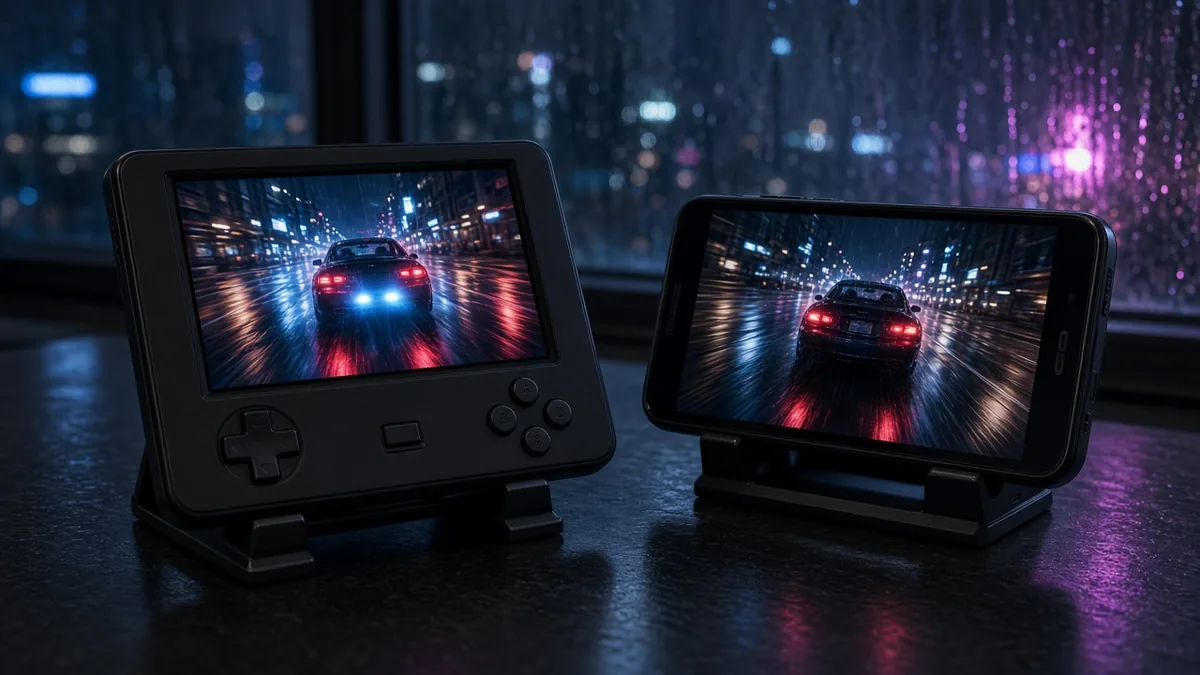
The PSP emulator to use is PPSSPP. It’s free, open source, runs on Windows, macOS, Linux, Android and iOS, and doesn’t need a PSP BIOS file. The current stable release is PPSSPP 1.20.4, published May 16, 2026, and the developer says version 1.21 is planned for Christmas (ppsspp.org). Install it from ppsspp.org or your phone’s app store, point it at games you’ve dumped from your own UMDs, and raise the rendering resolution. Most games end up sharper than they ever looked on the PSP’s 480×272 screen.
Everything below is checked against PPSSPP 1.20.4 as of November 2026, including setup on each platform, the settings worth changing, and a resolution chart that takes the guesswork out of the biggest one.
Key takeaways
Which PSP emulator is best?
PPSSPP, and it isn’t close. Henrik Rydgård created it and first released it under the GPL 2.0 license in November 2012, according to the project’s GitHub readme, and it has shipped steady updates ever since. The real choice is which version of PPSSPP you run.
| Option | Where to get it | Best for | Catch |
|---|---|---|---|
| PPSSPP (free) | ppsspp.org, Google Play, App Store | Almost everyone | None worth worrying about |
| PPSSPP Gold | Google Play, App Store, ppsspp.org | Paying the developer for years of free work | Costs money; the free app’s listing frames Gold as support for development |
| PPSSPP core in RetroArch | Inside RetroArch | People who run every system through one front end | Settings live in RetroArch’s menus, which are harder to learn |
| PPSSPP dev builds | ppsspp.org/devbuilds | Trying a fix before the next release | Less tested than stable releases |
Our take: start with the standalone app. Its menus are built for PSP games, and it gets fixes first. If you love it, buy Gold.
What you need to run a PSP emulator
The PSP was a 2004 handheld, so almost any device from the last decade can run it. Here’s the short list:
- A PC, Mac or Linux machine. Windows on ARM64 became officially supported with the 1.20 series, so the newer Snapdragon laptops work too (ppsspp.org).
- Or a phone or tablet. The 1.20 notes keep support all the way back to Android 5. On iPhone and iPad, PPSSPP is on the App Store.
- Your games as ISO or CSO files. PPSSPP 1.20.4 can also pull an ISO straight out of a 7z archive.
- A controller (optional). Touch controls work, but a pad is better for action games. If you’re shopping, our pro controller input-lag piece is a good place to start.
That’s it. No BIOS file, no firmware download. The GitHub readme says it plainly: PPSSPP is an HLE emulator, so it reimplements the PSP’s system functions itself.
How to set up PPSSPP, step by step
Setup takes about five minutes on any platform. The steps below match PPSSPP 1.20.4.
Step 1: Install PPSSPP
On PC, Mac or Linux, download it from ppsspp.org. On phones, install it from Google Play or the App Store. Skip third-party mirrors, especially any that bundle games.
Step 2: Add your games
Create one folder, such as Documents/PSP on a PC or a folder on your phone’s storage, and copy in the ISO or CSO files you dumped. Then open the Games tab and browse to that folder. On desktop, 1.20.4 adds type-to-search in the game browser.
Step 3: Set the graphics backend and resolution
In Settings, then Graphics, choose Vulkan if your device supports it, and OpenGL if a game misbehaves. Then set Rendering resolution using the chart in the next section.
Step 4: Map your controller
In Settings, then Controls, open Control mapping and bind each button.
Step 5: Use save states wisely
They’re instant snapshots, and 1.20 lets you set up to 30 slots (Android Authority, March 2026). Keep making normal in-game saves too, since a state from an older version can break.
Best PPSSPP settings: the resolution math
The PSP draws its games at 480×272. PPSSPP renders 3D at a whole-number multiple of that, so the trick is choosing the multiple that matches your screen. Go too low and the image gets stretched and soft; go too high and you burn GPU power on pixels you’ll never see.
| Rendering resolution | Output size | Good match for |
|---|---|---|
| 1x | 480×272 | The original look, or very weak devices |
| 2x | 960×544 | 720p handhelds and older phones |
| 3x | 1440×816 | 1080p phones that struggle at 4x |
| 4x | 1920×1088 | 1080p TVs, monitors and modern phones |
| 6x | 2880×1632 | 1440p monitors |
| 8x | 3840×2176 | 4K TVs |
Notice the odd heights. Because 272 isn’t a neat fraction of 1080 or 2160, 4x overshoots 1080p by 8 pixels and 8x overshoots 4K by 16. That tiny overshoot gets scaled down to fit, and a resize that small is hard to spot. Anything past 2x on a 720p screen gets scaled down too, so it costs performance for little visible gain. Playing on a TV? The same whole-number scaling logic shows up in our guide to 16-bit classics on a modern TV.
Texture upscaling is the other big visual setting. PPSSPP 1.20.4 fixed a bug where GPU texture upscaling would quietly stop on many mobile devices, and it added two new upscalers, NNEDI3 and Spline36 (ppsspp.org). Start with rendering resolution alone, then try texture upscaling on games with lots of 2D art, like menus and sprite-heavy RPGs.
Can PPSSPP play PSP multiplayer?
Yes, for games that used the PSP’s local ad hoc mode. PPSSPP 1.20 added a server-provided packet relay for ad hoc sessions (Android Authority), and 1.20.4 shows live status from relay servers that support it, so you can see what’s being played and by whom. The same release fixed relay-mode problems in The Warriors and Street Riders, according to the official 1.20.4 release notes. Our tip: have both players update to the same PPSSPP version before you start.
Is a PSP emulator legal?
Yes. Emulators are legal, and PPSSPP is open-source software you can read on its GitHub page. Downloading PSP ROMs, ISOs or firmware you don’t own is piracy, and we don’t link to any of it. The clean route is to dump your own UMDs using your own PSP, which gives you an ISO of a disc you paid for. It’s slower than a download, but it’s yours.
Your old saves can come along too. PPSSPP keeps a folder layout modeled on the PSP’s Memory Stick, so save data copied from your own PSP’s SAVEDATA folder generally drops right in.
For other systems, see our GBA emulator guide and whether PS3 games play on PS5, or our best handheld emulator picks to play PSP games on the go.
PSP emulator FAQ
Is PPSSPP Gold better than the free version?
Buy it for the right reason. The free app’s store listing points anyone who wants to support future development toward Gold, so think of it as paying the developer rather than buying a faster emulator. If PPSSPP has kept your PSP library alive for years, a few dollars is an easy way to say thanks.
Why does my PSP game run slowly in PPSSPP?
Lower the rendering resolution first, since it’s the heaviest setting. Then try switching the graphics backend between Vulkan and OpenGL, and turn off texture upscaling. On phones, check that battery saver isn’t throttling the processor. Finally, check the game’s entry on PPSSPP’s community compatibility site for game-specific fixes.
Does PPSSPP work on iPhone?
Yes. PPSSPP is available on the App Store for iPhone and iPad, and the 1.20 series added proper portrait-mode support on iOS. Copy your dumped ISO files onto the device first, and pair an Xbox or PlayStation controller over Bluetooth if touch controls feel cramped.
Can PPSSPP run PS2 games?
No. PPSSPP’s FAQ says it plays PSP games only. The one exception is PS1 games in the PSP’s EBOOT format, which run experimentally in 1.21 development builds with PSP firmware installed. For PlayStation 2 on PC, the official project is PCSX2, which needs a BIOS dumped from your own PS2.
Dump what you own, start at 4x, and your PSP library is good for another 20 years.
Cassia Fenwick
Cassia Fenwick is a staff writer at Console Alley, covering console gaming from the latest hardware questions to the games players return to for years. Her work moves across news, practical guides, reviews, gaming gear, and the wider culture around games. Whether she is breaking down a new console feature or explaining a mechanic in a familiar favorite, she writes with a straightforward goal: help readers understand what matters and what to do next. She pays particular attention to the small details that shape the playing experience. A controller compatibility rule, a battery-life setting, a difficult-to-find resource, or a change introduced by a game update can make the difference between a frustrating evening and a rewarding one. Her published coverage includes Nintendo Switch and Switch 2 questions, Terraria, Stardew Valley, and The Sims 4, with explanations that welcome readers who may be discovering a game for the first time or returning after time away. Cassia's style is clear, patient, and grounded in practical examples. Rather than assuming readers already know the terminology, she begins with the question at hand, adds the context that genuinely helps, and keeps instructions easy to follow. She is interested not only in how a feature works, but also why its design matters—especially when a small interaction, interface decision, or unexpected mechanic changes how a game feels. Outside her gaming coverage, Cassia enjoys colorful postcards, making books, and noticing the shapes, colors, and details built into everyday objects. That curiosity carries naturally into her writing, where overlooked features and thoughtful design can provide a fresh way to look at a game. Her aim is for every article to be useful on its own: approachable enough for a newcomer, specific enough for someone looking for a quick answer, and enjoyable enough to leave readers with something new to explore.


1 comment