How to Fix Stick Drift on PS5: Official Fixes First, Repairs Last
How to fix stick drift on PS5: reset the DualSense, update it, clean around the stick and adjust deadzones, then weigh repair or replacement options.

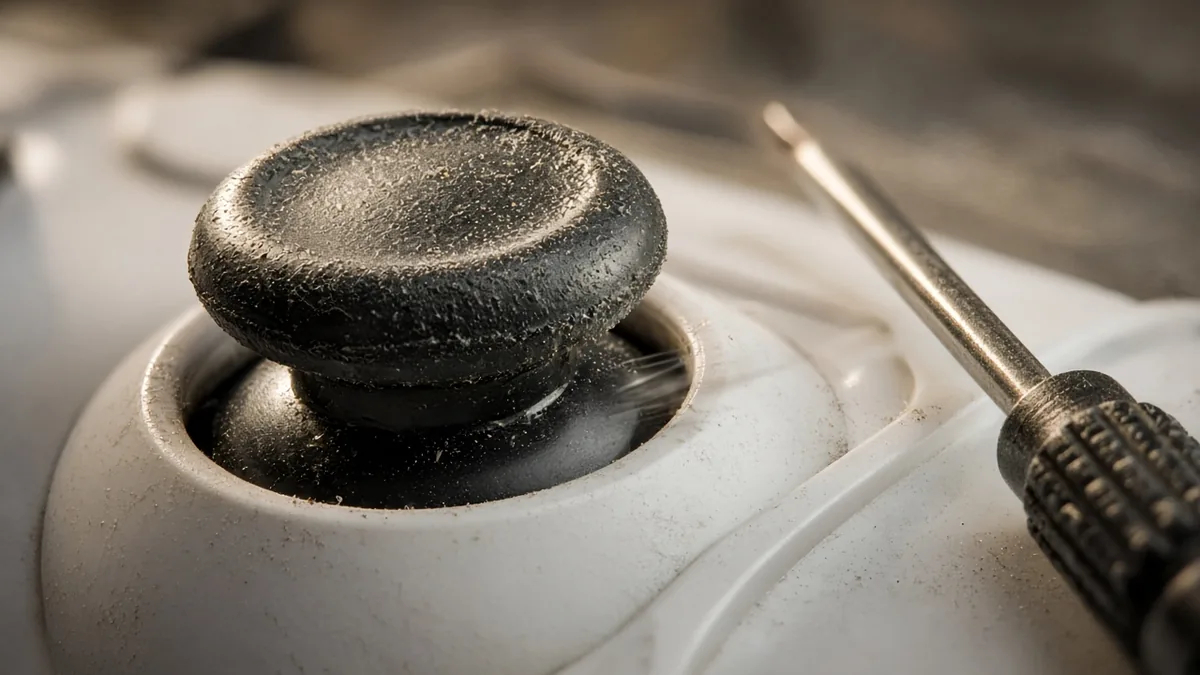
To fix stick drift on a PS5 DualSense, start with Sony’s own steps: turn off the console, press and hold the reset button on the back of the controller for at least 5 seconds, reconnect it with a USB cable, then update both the controller and PS5 software. If the stick still moves on its own, clean around it and raise the in-game dead zone. When none of that works, the sensor is worn, and your real options are a warranty claim, a repair or a replacement. These steps match Sony’s DualSense support page as checked in November 2026.
Key takeaways
How to tell it’s really stick drift
Stick drift means the controller reports stick movement when you aren’t touching it. Put the controller down on a flat surface in a game where you control the camera or a cursor. If your view slowly pans or your character creeps forward with your hands off, that’s drift. If it only happens in one game, check that game’s settings first; it may be an aim-assist or sensitivity quirk, not the controller.
That diagram is the whole problem in one picture. Every stick reads a little noise at rest, and games ignore readings inside a small dead zone. As the stick’s sensors wear or collect grime, the resting reading wanders further from center. Once it crosses the dead zone edge, your game treats it as real input.
Step 1: Reset the DualSense controller
This is Sony’s first troubleshooting step for any DualSense problem, and it costs nothing. It clears glitched settings that can cause phantom input.
- Turn off your PS5 completely (not Rest Mode).
- Unplug the DualSense from its USB cable.
- Find the reset button inside the small hole next to the Sony logo on the back.
- Press and hold it with a pin or straightened paperclip for at least 5 seconds.
- Turn the PS5 back on, connect the controller with the USB cable that came with it, and press the PS button to pair it again.
Now test again with your hands off. If the drift is gone, you’re done. If it’s reduced but not gone, keep going.
Step 2: Update the controller and PS5 software
Sony’s support page also tells you to update the PS5 system software, and the DualSense has its own firmware. With the controller connected, go to Settings > Accessories > Controllers (General) > Wireless Controller Device Software and install any update. Then check Settings > System > System Software > System Software Update and Settings for console updates. Updates won’t repair a worn sensor, but they rule out a known software bug.
Step 3: Clean around the stick
Dust, skin oil and snack crumbs under the stick’s rubber skirt can push it slightly off center. Power the controller off, then use short bursts of compressed air around the base of the stick while rolling it in full circles. Wipe the stick and skirt with a dry microfiber cloth. Never spray liquid directly into the controller. Roll the stick through its full range 10 to 20 times afterward and test again.
Step 4: Raise the dead zone in your game
Many shooters and sports games let you raise the stick dead zone in their controller settings. A slightly bigger dead zone hides mild drift completely, at the cost of a little precision on tiny movements. The standard PS5 system menus don’t include a stick calibration or dead zone tool for the regular DualSense, so this fix lives game by game. The DualSense Edge is the exception: Sony built adjustable stick sensitivity and dead zones into its settings.
While you’re in the settings menus, our list of the first settings to change on a new console covers a few other controller options worth a look.
Is PS5 stick drift covered by warranty?
Usually, if the controller is still in its warranty period. In the US, Sony covers DualSense controllers under its limited hardware warranty, typically one year from purchase; terms vary by country, so check your receipt and region. Start a claim from Sony’s hardware support pages by choosing the DualSense and following the repair prompts.
Do this before you open anything. Prying off the shell, swapping sticks or soldering can void coverage and turn a free fix into a paid one. Only open the controller if it’s out of warranty and you accept that risk.
Repair or replace: which option makes sense
Once software fixes fail, you’re paying in money, time or skill. Here’s how the routes compare.
| Option | Best for | Catch |
|---|---|---|
| Sony warranty repair | Controllers inside the warranty period | You’re without the controller while it’s away |
| Repair shop stick swap | Out-of-warranty controllers you want to keep | The DualSense stick is soldered, so quality varies by shop |
| DIY stick replacement | People comfortable desoldering a board | Easy to damage the board; voids any warranty |
| New DualSense or DualSense Edge | Anyone done fighting a worn controller | Highest upfront cost |
When does the DualSense Edge pay off? A worked example, using Sony’s list prices of $199.99 for the Edge and $19.99 per replacement stick module, against a $74.99 standard DualSense (PlayStation Direct US listings, checked November 2, 2026). The Edge costs $125 more up front. Each time a stick wears out, the Edge owner spends $19.99 on a module while a standard owner spends $74.99 on a new controller, a $55 difference. So the Edge breaks even after about 2.3 worn-out sticks, roughly the third time drift hits. Our take: for heavy players who’ve already replaced a DualSense or two, the Edge is the sensible end of the cycle. For casual players, one replacement DualSense is cheaper.
If you’re shopping for a sturdier replacement, our look at pro controllers and which ones earned their price is worth reading first. Sony’s own DualSense troubleshooting page has the reset steps and links to repair options.
Drift isn’t just a PlayStation problem: see which Switch 1 controllers work on Switch 2 and how to reset a Nintendo Switch. If you’re on PS5 for older games, can you play PS3 games on PS5 explains the options.
Stick drift FAQ
Does resetting a DualSense delete anything?
No game data or saves live on the controller, so nothing important is lost. The reset clears the controller’s own settings and pairing, which is why you reconnect it with a USB cable and press the PS button afterward. Your console settings and save files stay untouched.
Can stick drift fix itself?
Mild drift caused by dirt sometimes clears after cleaning and rolling the stick through its full range. Drift from worn sensors doesn’t heal and usually gets worse over time. If it returns within days of cleaning, plan on a warranty claim, repair or replacement rather than repeated cleaning.
Cassia Fenwick
Cassia Fenwick is a staff writer at Console Alley, covering console gaming from the latest hardware questions to the games players return to for years. Her work moves across news, practical guides, reviews, gaming gear, and the wider culture around games. Whether she is breaking down a new console feature or explaining a mechanic in a familiar favorite, she writes with a straightforward goal: help readers understand what matters and what to do next. She pays particular attention to the small details that shape the playing experience. A controller compatibility rule, a battery-life setting, a difficult-to-find resource, or a change introduced by a game update can make the difference between a frustrating evening and a rewarding one. Her published coverage includes Nintendo Switch and Switch 2 questions, Terraria, Stardew Valley, and The Sims 4, with explanations that welcome readers who may be discovering a game for the first time or returning after time away. Cassia's style is clear, patient, and grounded in practical examples. Rather than assuming readers already know the terminology, she begins with the question at hand, adds the context that genuinely helps, and keeps instructions easy to follow. She is interested not only in how a feature works, but also why its design matters—especially when a small interaction, interface decision, or unexpected mechanic changes how a game feels. Outside her gaming coverage, Cassia enjoys colorful postcards, making books, and noticing the shapes, colors, and details built into everyday objects. That curiosity carries naturally into her writing, where overlooked features and thoughtful design can provide a fresh way to look at a game. Her aim is for every article to be useful on its own: approachable enough for a newcomer, specific enough for someone looking for a quick answer, and enjoyable enough to leave readers with something new to explore.


1 comment